Common Face Swap Artifacts Explained
Key findings
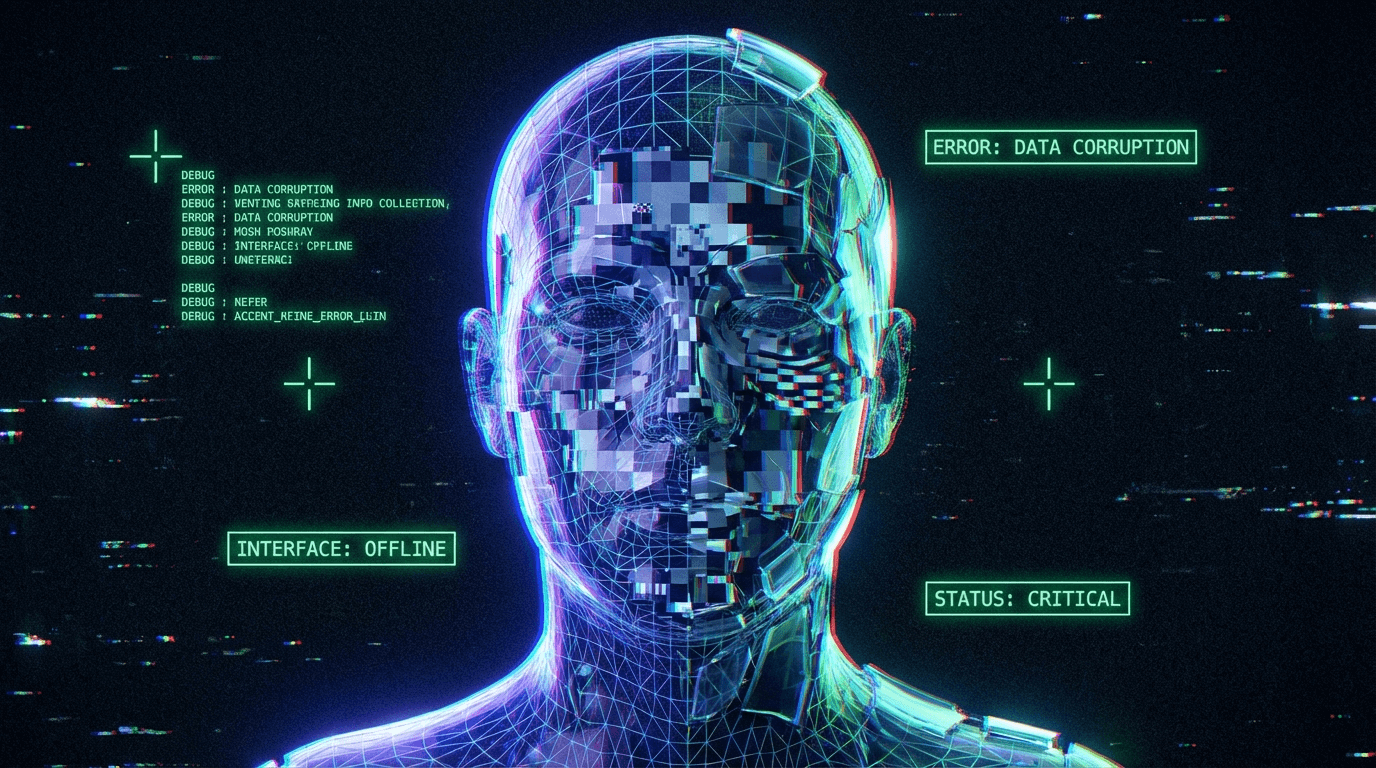
Face swapping is not magic; it is a composite process. Like bad Photoshop, it leaves specific "scars" or "artifacts" when the settings are imperfect. Identifying these visual glitches is the first step to fixing them. Most artifacts fall into three categories: Masking Errors (visible edges), Temporal Errors (flickering over time), or Texture Errors (blur/plasticity).
Applicable Scope This glossary applies to all one-shot swappers (FaceFusion, Rope, Roop).
1. The "Square Box" (Masking Failure)
- What it looks like: A faint (or obvious) square or rectangular outline around the face. The skin tone inside the box doesn't quite match the forehead or neck outside the box.
- Why it happens: The "Face Mask" (the cut-out shape) is too large or has too little feathering. The color correction algorithm failed to blend the swapped skin tone with the original skin tone.
- The Fix: Increase
face_mask_blur(feathering) and try a different color correction mode (e.g., switch fromreinhardtocombined).
2. The "Flicker" (Temporal Instability)
- What it looks like: The face swap disappears for a single frame, flashing the original actor's face, then reappears. Or the face seems to "vibrate" rapidly.
- Why it happens: The Face Detector Score is right on the edge. In frame 1, the confidence is 0.51 (Pass); in frame 2, it's 0.49 (Fail). The AI drops the face because it's not sure it's a face.
- The Fix: Lower the
face_detector_score(e.g., to 0.4 or 0.3) to force the AI to keep swapping even if it's unsure.
3. The "Ghost Face" (Alignment Drift)
- What it looks like: You see two sets of eyes or a double nose—faintly overlaid on top of each other. It looks like a double-exposure photograph.
- Why it happens: The source face isn't perfectly aligned with the target face. This often happens during fast motion (motion blur) where the detector finds the wrong landmarks (e.g., mistaking a shadow for an eye).
- The Fix: Avoid using source videos with heavy motion blur. Use a "Temporal Smoothing" filter if available (though this causes ghosting of a different kind).
4. The "Floating Jaw" (Landmark Error)
- What it looks like: When the actor turns their head, the jawline of the swapped face doesn't rotate with them. It looks like a mask sliding off the side of the head.
- Why it happens: Face Alignment Errors. The AI lost track of the "far" eye or cheek in the side profile.
- The Fix: None in post. Use footage with less extreme head rotation.
5. The "Plastic Doll" (Enhancer Overdrive)
- What it looks like: The eyes are super sharp and blue, the skin is perfectly smooth (no pores), but the neck is grainy and realistic. It looks like a sticker.
- Why it happens: Blurry or Soft Results. The Face Enhancer (GFPGAN/CodeFormer) was set to 100%, destroying the natural skin texture to achieve artificial sharpness.
- The Fix: Lower the Face Enhancer blend amount to ~50% or turn it off and use a video upscaler instead.
Troubleshooting Cheat Sheet
| Artifact | Likely Culprit | Quick Fix |
|---|---|---|
| Square Box | Mask Blur too low | Increase mask_blur |
| Flickering | Detector Threshold too high | Lower detector_score |
| Grainy/Blurry | Resolution Limit | Turn on Enhancer (gently) |
| Wrong Color | Lighting Mismatch | Cycle color_correction modes |
| Twisted Face | Bad Alignment | Pick a target video with less rotation |
Related phenomena (links)
- Face Alignment Errors Explained – Deep dive into the "Floating Jaw".
- Why Face Swap Controls Feel Ineffective – Why fixing these artifacts via sliders is hard.
Final perspective
Artifacts are the "language" of the software telling you what's wrong. A "Box" means blending failed. A "Flicker" means detection failed. Learning to read these visual cues saves hours of random button mashing.